
Summary: The Business Case in Short
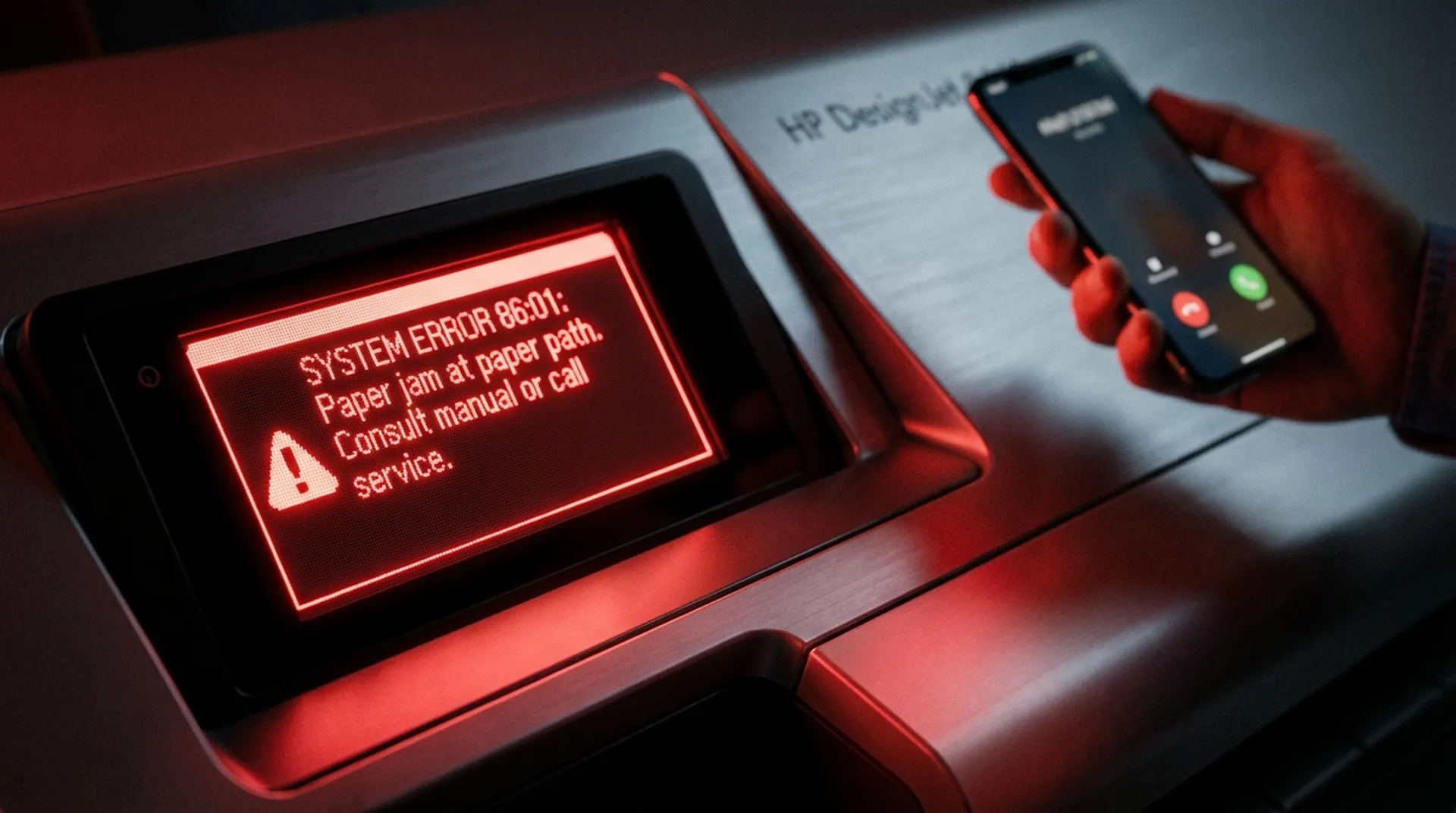
Nothing is more frustrating than a plotter that breaks down, especially on a Friday afternoon just before a deadline. The display flashes red: System Error 86:01. Now what?
In a reflex, many users immediately call technical service. But did you know that 50% of malfunctions can be solved by the user themselves in less than 10 minutes, without tools?
By having a basic understanding of the error codes, you save call-out costs, waiting time and, more importantly, you are immediately operational again. In this post, we dissect the “Big 3” of HP error codes and give you the step-by-step plans that our own technicians also carry out first.
1. The Classic: Error 86:01 (Carriage Jam / Paper Jam)
What it means: The print carriage (Carriage), which contains the printheads, cannot move freely from left to right. It bumps into something or feels too much resistance (friction). Possible causes:
- A wad of paper that is stuck (Paper Jam).
- The belt is worn, frayed or broken (you will then find black rubber crumbs).
- The carriage rod is too dry or dirty, causing too much friction.
The Solution (DIY):
- Turn off the printer (switch on the back) and pull the plug. (Safety for your fingers!)
- Open the top cover.
- Look into the machine with the flashlight of your phone. Is there a wad of paper somewhere? Especially check the far left and far right corners (at the Service Station). Use tweezers or needle-nose pliers to remove it.
- Feel the belt that pulls the carriage. Does it hang limp like a rubber band? Are teeth missing? (If so -> You cannot do this yourself. Call Europlan for replacement).
- Is the metal rod dirty (black caked-on gunk)? Clean it with a lint-free cloth. Sometimes cleaning and oiling (with special HP oil) is enough.
- Turn the printer back on. 9 times out of 10, the error is gone.
2. The Ink Issue: Error “Reseat Printhead” or “Cartridge Rejected”
What it means: The printer’s electronics cannot communicate with the chip on the printhead or the cartridge. It “does not see” it. Possible causes:
- Dirty contact points (fingerprints, ink splatters).
- Oxidation of the copper contacts.
- Use of non-original ink (the chip is blocked).
The Solution (DIY):
- Take out the cartridge or printhead that gives the error.
- Take a lint-free cloth (e.g., a glasses cloth or coffee filter) and put a small amount of pure alcohol or demi-water on it (no tap water due to lime).
- Gently polish the gold-colored contact points on the chip of the ink/head.
- Look into the printer with a flashlight, where the head goes (the carriage). Do you see pins there too? Polish them very carefully.
- Put everything back and restart the printer. The “handshake” between printer and chip often succeeds now.
3. The Network Ghost: Printer Offline / “Printer not found”
What it means: Your PC sees the printer as “Offline”, while the printer is definitely on and lights are burning. Possible causes:
- IP address conflict (two devices have the same number).
- DHCP lease expired (the IP address has changed).
- Windows Update has changed the port setting.
The Solution (DIY):
- Walk to the printer. Press the “Connectivity/Network” icon on the panel.
- What is the IP address? (E.g.,
192.168.1.50). Write this down. - Go to your PC. Open a browser (Chrome/Edge).
- Type that IP address (
http://192.168.1.50) in the address bar. - Does the printer’s blue web page (EWS - Embedded Web Server) appear?
- YES: The network connection is fine. The printer is not broken. The problem is in your driver on the PC. Go to Printer Properties -> Ports -> Configure Port and check if the IP address is still correct. Otherwise, remove the printer and add it again.
- NO (Time-out): The printer is not properly on the network. Check the network cable in the back of the printer (are the orange/green lights at the port burning?). Restart your router/switch or change the network cable.
Business Fundamentals: Self-Reliance
Why should an office manager or head of drafting room know this?
- Empowerment: You are not helplessly at the mercy of external parties.
- Savings: Every service call you prevent by removing a piece of paper yourself saves your company € 200+.
- Speed: Solving it yourself = 10 minutes. Waiting for a technician = 24 hours. In construction, time is money.
When should you call? (Don’t try this at home)
If you see codes beginning with:
- System Error 01:xx (Motherboard/Electronics failure)
- System Error 47:xx (Star Wheel Motor failure)
- System Error 21:xx (Service Station failure)
- System Error 11:11 (Wiring harness connection problem) These are hard hardware defects that require new parts. A restart won’t help here (and hitting the printer won’t either). Call Europlan immediately.
Europlan Service
Have you tried it and it doesn’t work? With modern HP printers, our helpdesk can often look into the printer’s internal logs remotely (via the cloud and the Embedded Web Server) to find the exact cause before we get into the car.
Conclusion: Keep Calm and Reset
A plotter is actually just a computer with a printer around it. Often a “Hard Reset” is the solution for vague electronic complaints:
- Unplug the power cord while the printer is on.
- Wait 1 minute (so all capacitors can drain).
- Plug the power cord back in and hold the power button for a moment. Always try that first, before you panic!
Does the error code keep coming back?
Read also
- Product/Solution: discover our service & maintenance options
Report your malfunction online to our technical department (mention the error code)